


ColoringCodesBot is a catalogue of colouring books where pages can be rated, saved and followed in a personal tracker. The interface is in English. At the bottom there are five tabs: “Tracker”, “Upload”, a round search button in the centre, “Saved” and “Profile”.
Catalogue
The search button opens a “Search” screen with a “Search coloring books...” field, an “My tomes” and “All” switch and a sort icon. Below them are a “Rate works” block and a grid of covers: the catalogue holds 392 books, and each cover shows a download count, for example 16807 for “Princesses”.
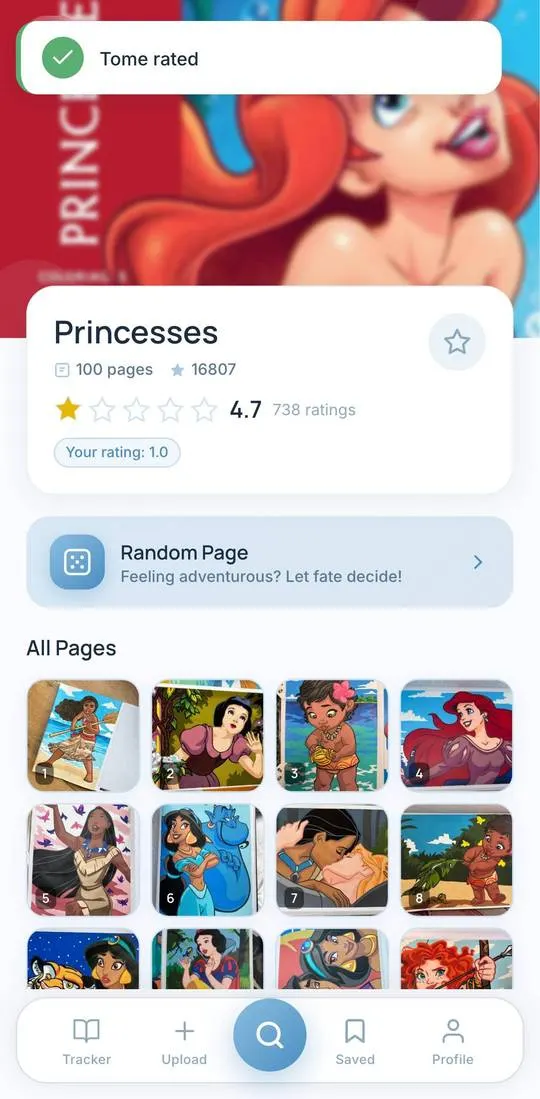
A book card shows the title, the page count (100 for “Princesses”), a rating of 4.7 from 737 votes and stars for giving your own rating. Below are a “Random Page” button and an “All Pages” grid of numbered thumbnails.
Tracker
The screen shows a completion percentage and three counters: “completed”, “in progress”, “not started”. In the “Your Books” block there is an “Add book” tile. The “Statistics” button opens a report with the tabs “Overview”, “Books” and “Rhythm” (the last has a crown icon). “Overview” has four numbers: “Pages colored in”, “This month”, “Books”, “Books purchased this month”, with an “Activity” chart below.
Saved
A “Bookmarks” section with three tabs: “Works”, “By tome”, “People”. While nothing is saved, the screen shows “No bookmarks yet” and a “Browse works” button.
Upload
Four items: “Upload work”, “Suggest tome”, “Suggest marker”, “My pending works”.
Profile and settings
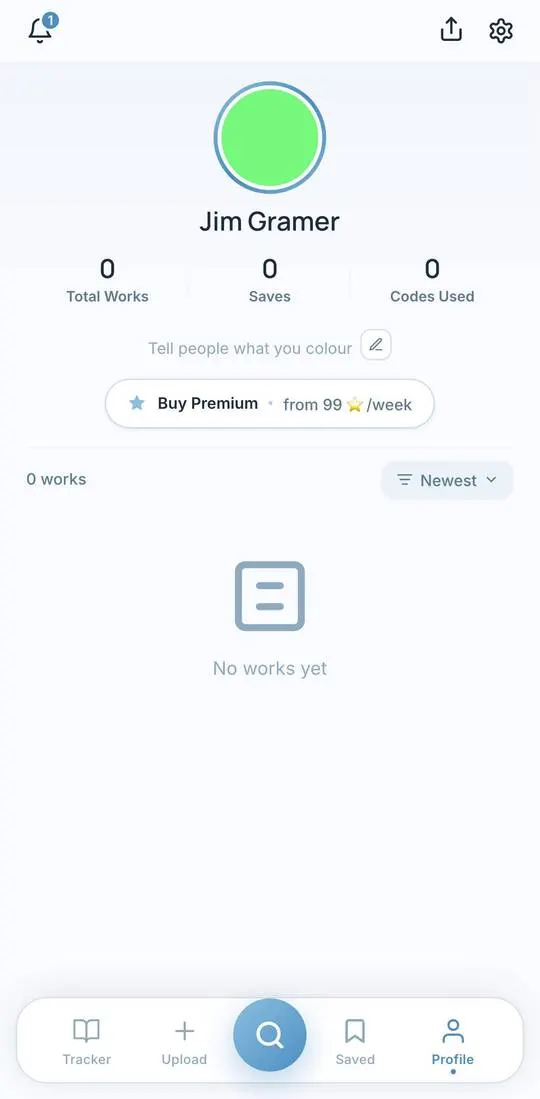
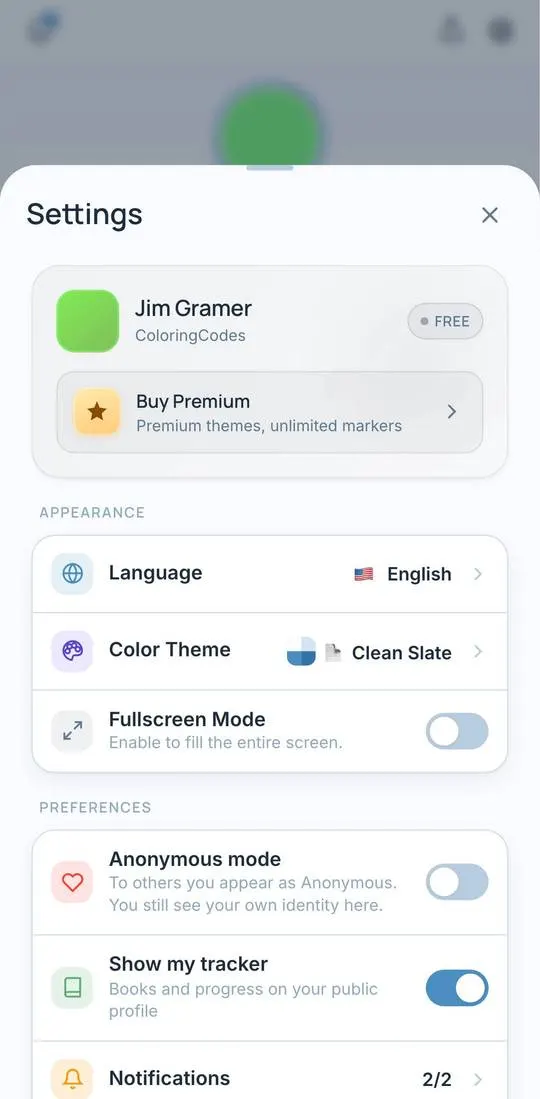
The profile has the counters “Total Works”, “Saves”, “Codes Used”, a “Buy Premium” button captioned “from 99 ⭐/week” and a list of works with the “Newest” sort. Settings: language, “Color Theme”, “Fullscreen Mode”, “Anonymous mode” (others see you as Anonymous) and “Show my tracker”. The “Buy Premium” card says “Premium themes, unlimited markers”.
Not checked
- Buying Premium with stars.
- Uploading a work and sending suggestions for a book or marker.
- The “Rhythm” tab.
- The “Rate works” screen.