


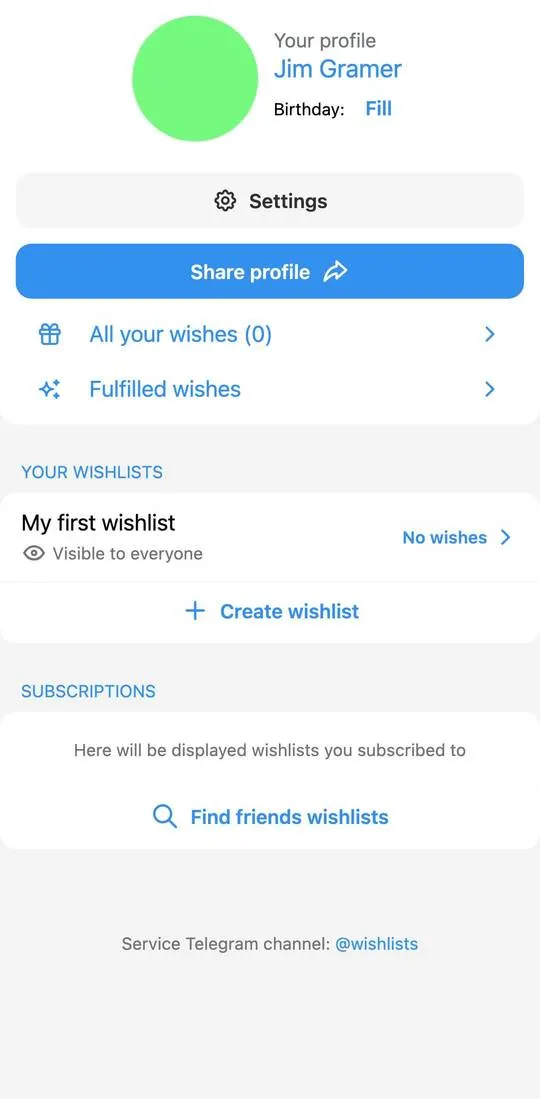
Wishbox is wishlists in Telegram: they can be kept, opened by link and shared. The interface is in English, and at the bottom of every screen is “Service Telegram channel: @wishlists”.
First steps
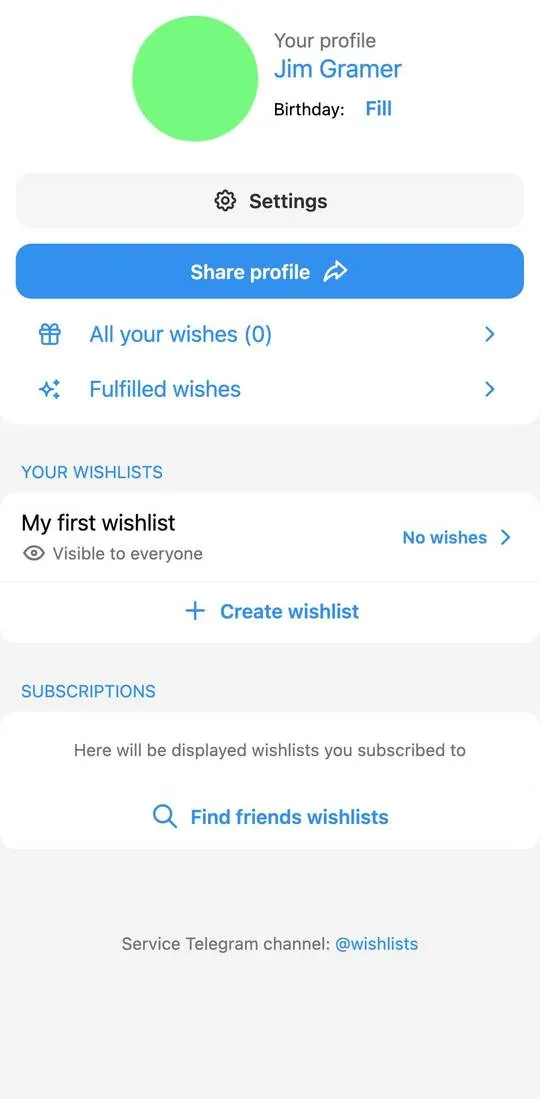
- Open the app: at the top is “Your profile” with a “Birthday” field and a “Fill” link, then “Settings” and “Share profile”.
- Below are “All your wishes (0)” and “Fulfilled wishes”. The “Your wishlists” block already has “My first wishlist” marked “Visible to everyone” and “No wishes”.
- Open “My first wishlist”: a cover, a description, the buttons “Edit” and “Share”, a “Wishes” block with the buttons “Add” and “Add wish”, and the text “There are no wishes yet”.
- To start another list, tap “Create wishlist”.
Lists
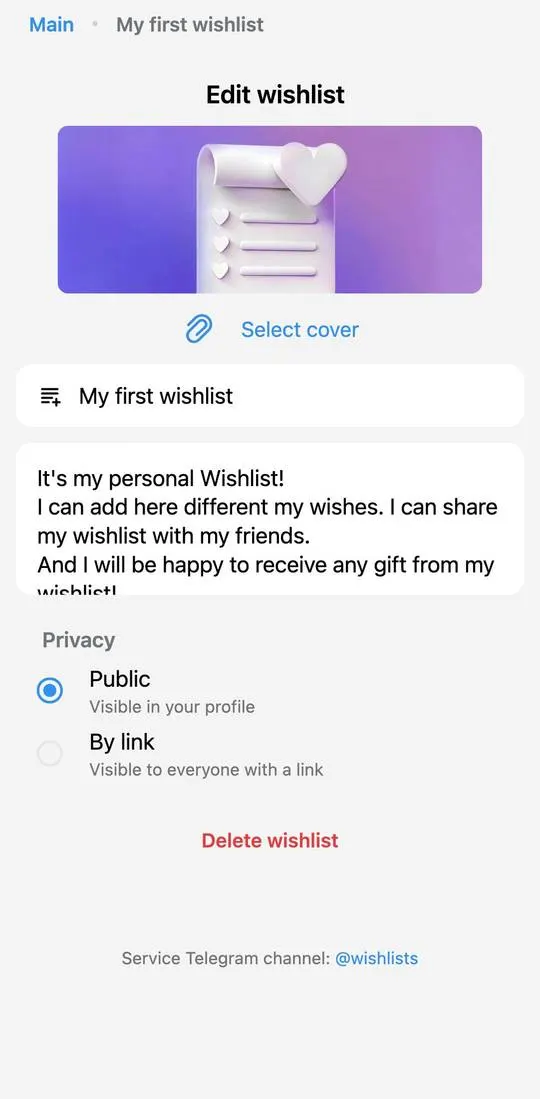
- “Create wishlist” has a cover (“Select cover”), “Title (required)”, “Description” and “Privacy”: “Public” (visible in the profile) or “By link” (visible to everyone who has the link).
- “Edit wishlist” has the same fields with the values already filled in and a red “Delete wishlist” button.
- “All your wishes” is a combined list of wishes from all lists, currently empty, with an “Add wish” button.
- “Fulfilled wishes” shows “No wishes marked as fulfilled yet”; it says that profile visitors see this section, and the setting is in “settings”.
Settings
“Settings” contains “Birthday” with an “Edit” button, the switches “Show Telegram username” and “Show fulfilled”, and in the “Booked wishes” block a choice of three options: “Hide” (not seeing that a wish has been booked), “Show anonymously” and “Show names”. At the bottom is a “Save” button.
Friends
The “Subscriptions” block is captioned “Here will be displayed wishlists you subscribed to” and contains a “Find friends wishlists” button.
Not checked
- Adding a wish and its fields.
- “Share profile” and a list’s “Share”: what is sent and where.
- Searching for friends’ lists and subscribing to them.
- What a list looks like to a visitor and how a wish is booked.